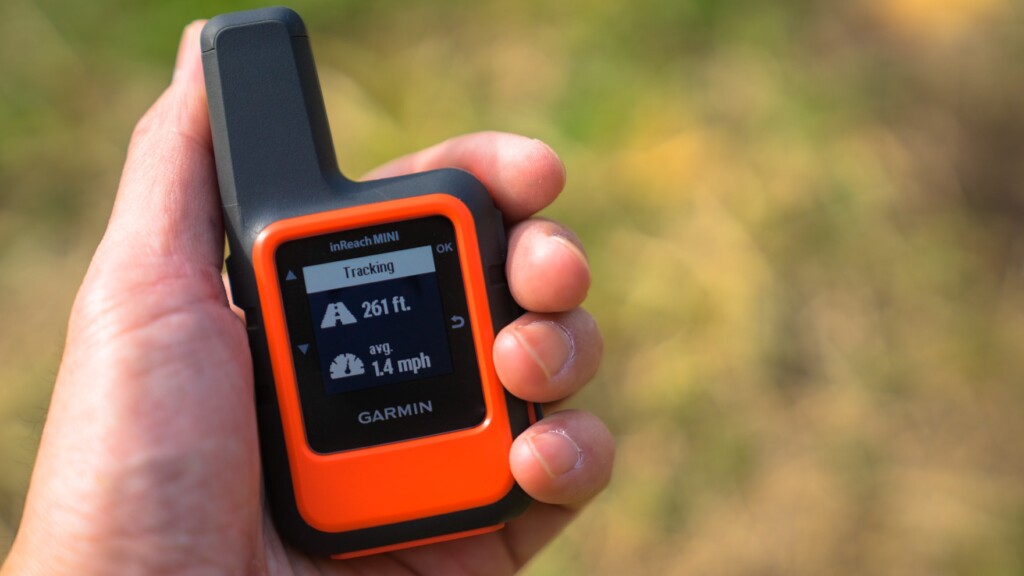
Garmin inReach® Mini: A revolutionary satellite communication device that everyone who goes into the mountains should know about

Written by Yoshihiro Murakami
Basic usage
[Editor's note] In addition to the basic usage explained here, we have written a new article on more practical usage. If you are interested, please also refer to the article below
Creating an email
Preset Messages
Preset messages became free about two years ago. You can send as many as you want, so it's a good idea to make the most of them. Since you select messages using the keys, it takes time to select messages 1, 2, and 3 in that order. Therefore, it's a good idea to use message 1 for frequently used messages and messages 2 and 3 for less frequently used messages. In most cases, three types of preset messages are sufficient
In my case,
- Rest stop. I will go further
- Lunch time. I rest at least for half an hour
- Tent here. A good place to spend a night
In short, we only take breaks, lunch, and a tent. We take breaks every 1-2 hours, so we send our current location with the inReach Mini at those times. Even if we get lost and are unable to send an SOS, we will be found quickly because the search range is small. An example of the settings is shown in Photo 9
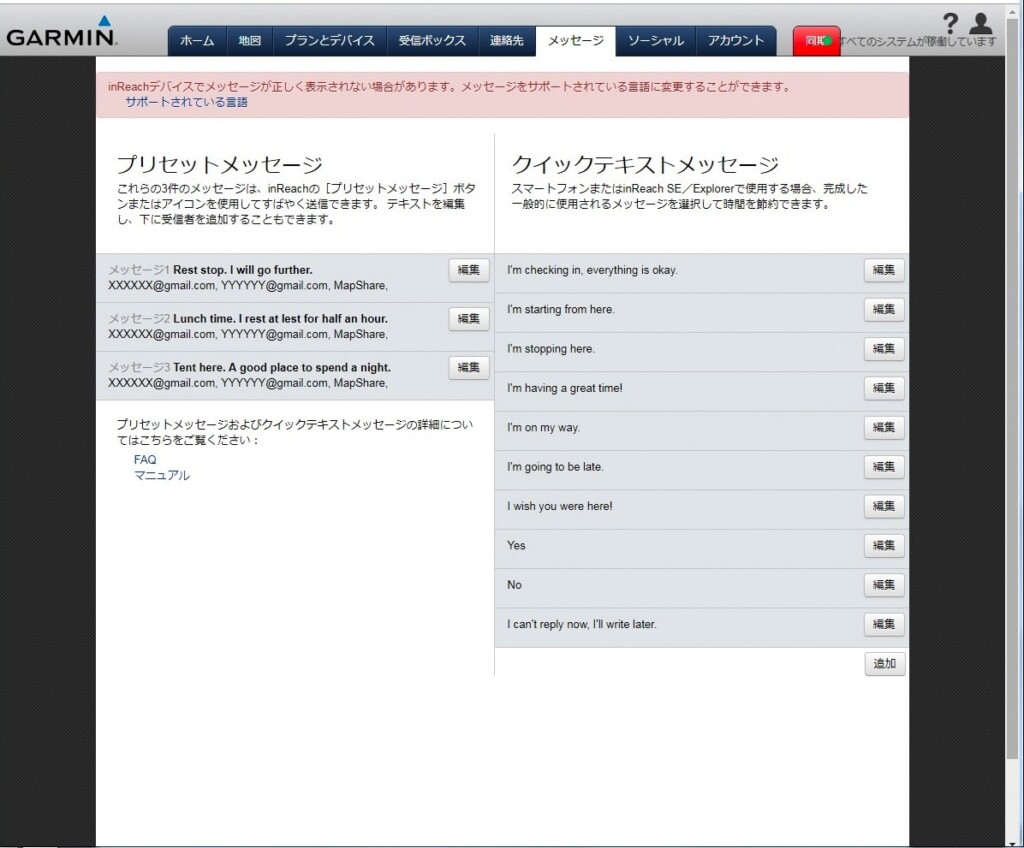
Photo 9: Message settings example. Customize it to suit your hiking style
The preset message is sent simultaneously to Mapshare and multiple email addresses. The English version of the web page also has a Facebook option, but it seems that this option has been removed from the Japanese version to avoid any issues
Quick Text Message
Quick text messages are useful when you receive an email and want to reply quickly. Select OK, Reply, and Pick Quick Text for the message you received. After selecting a quick text message, add it with Write Message and reply with Send. Figure 9 shows a default sample. You can customize it to your liking
An example of a quick text message is given below
- I'm checking in, everything is okay
- I'm starting from here
- I'm going to be late
Some hotels are out of cell phone range and require you to reply using your inReach Mini. The first sentence is likely one such case. The second and third sentences are intended for use while hiking. Since each reply requires a paid message, if you have a smartphone, it's best to just write the message on your Earthmate. I've actually written a lot of messages myself, but I've never actually used them. I usually write just one paid message after pitching my tent and having a meal
Creating a message using a smartphone
Japanese characters are available, but they are not displayed on the inReach and are therefore unreadable. Therefore, I write my messages in English. Roman characters are very difficult to read, so I prefer simple English. There's a strict character limit of 160 characters, so as long as it's understandable, that's all I need. Since I write after dinner, the English I use is limited to place names and the time
Photo 10 shows a sample message I sent from the US. It means "Dinner at Muir Pass, start at 6:40, La Conte at 9:00, Big Petty Meadow at 9:40, thunder and lightning, Muir Pass at 17:10, tent at 17:30," which is hardly English. This message arrived in Japan within a few minutes
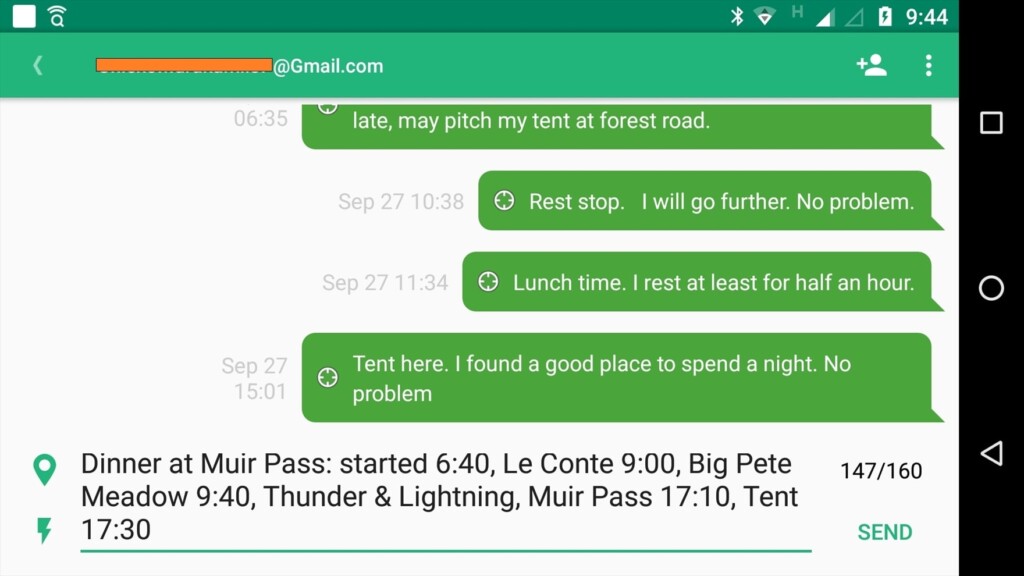
Photo 10: Creating a message using the Earthmate app (reproduced)
Use of Japanese
Japanese cannot be displayed on the Explorer+ or Mini devices. Earthmate also does not support Japanese. Therefore, I have been using simple English. However, before I knew it, Earthmate and Garmin website accounts were made available in Japanese. Aside from the fact that it is not displayed on Garmin devices, Japanese is, for the time being, available
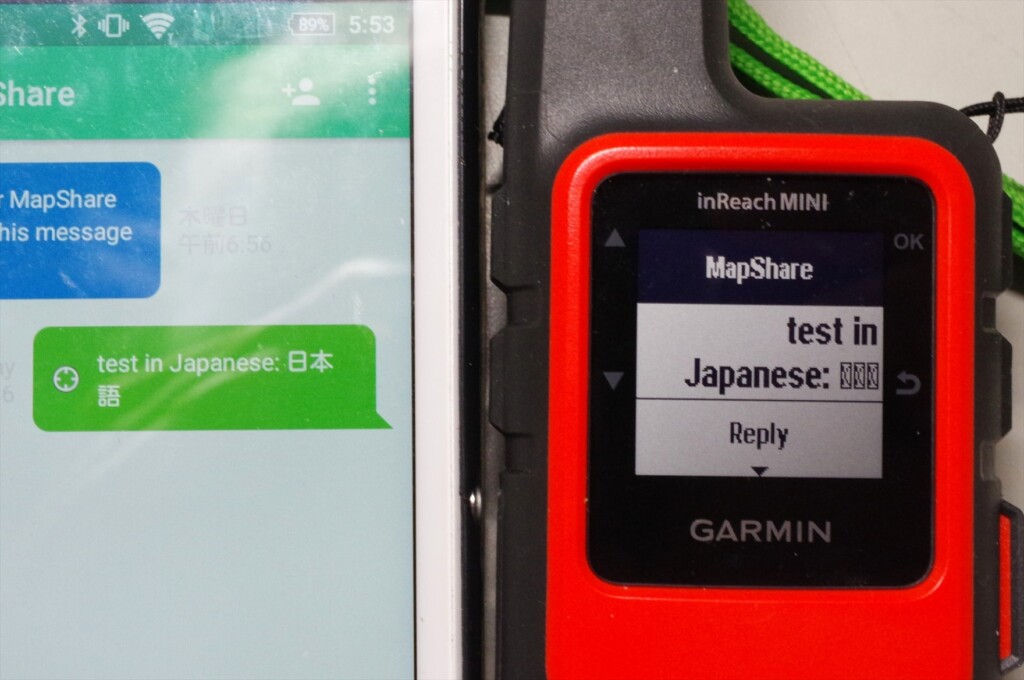
Photo 11: If you enter Japanese, it will not be displayed on the Garmin inReach MINI. However, you can still use it if you pay attention to that point
Photo 11 shows the result of creating a Japanese message on the Earthmate smartphone and sending it with the inReach Mini. The Japanese text is displayed on the Earthmate, but not on the inReach Mini
Mapshare is software that displays your messages, longitude and latitude location information, etc. on a map, and was inherited from Delore. You can take some security measures by clicking Filter Mapshare Data (Photo 13) and Configure Mapshare Settings (Photo 12) from the Social tab of your account, setting the display period and password
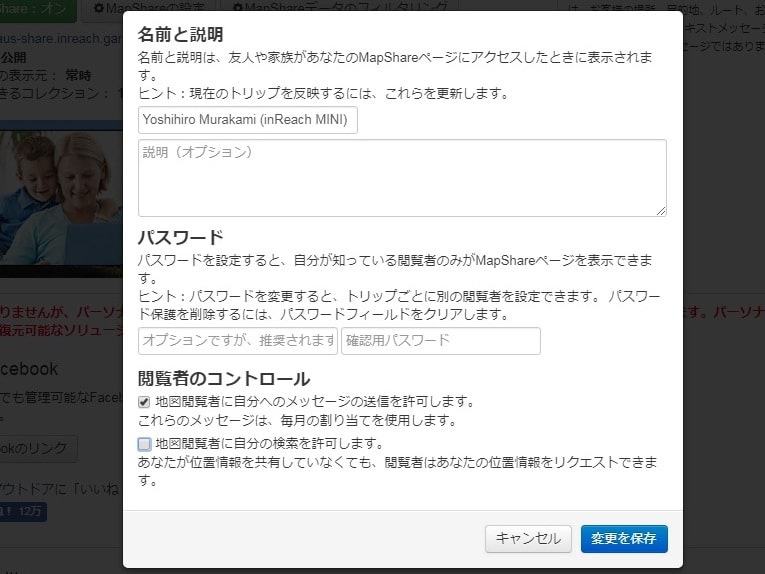
Figure 12: Mapshare preferences, where I checked the option to allow map viewers to send messages
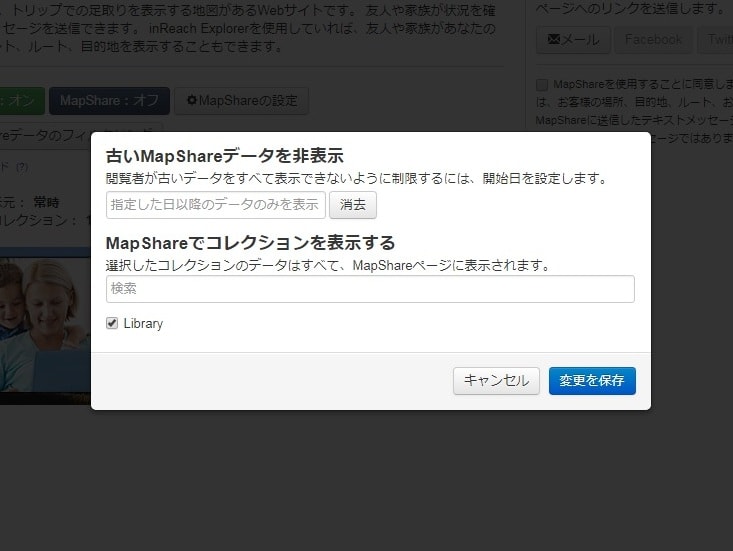
Photo 13: You can set the display period for your current location. However, this function cannot be shared via URL
However, I'm not sure if this is because I'm using an English site or if it's a bug on the web page, but even if I filter the display period, when I share the Mapshare URL, the filter is turned off. So I changed the name of this URL, and then my previous current location is not displayed
To allow viewers to reply to your map, check the option, as shown in Figure 12. Please note that there is a $0.50 fee for receiving emails, depending on your subscription
If you enable Mapshare as a reply option and share it with a friend, you will see an image like the one shown in Photo 14-a. Clicking on the detailed view of your current location in the center will attach information such as latitude, longitude, altitude, and movement speed
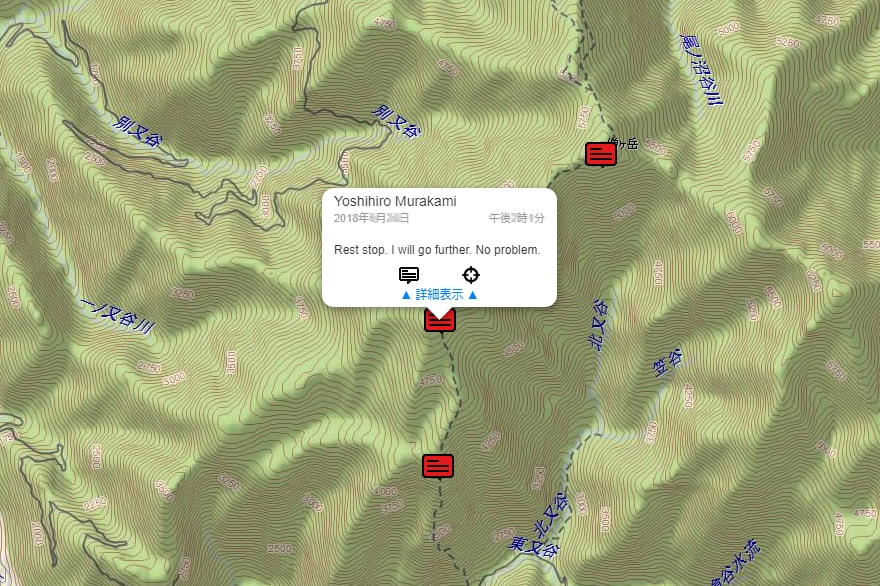
Photo 14-a: Shared location information. Clicking on the details view reveals information such as latitude, longitude, altitude, and movement speed
Clicking on the speech bubble will open a message creation window where your friend can write and send a message (Photo 14-b). This reply can be received even in the mountains where there is no cell phone signal, and can be read on the inReach Mini or a paired smartphone
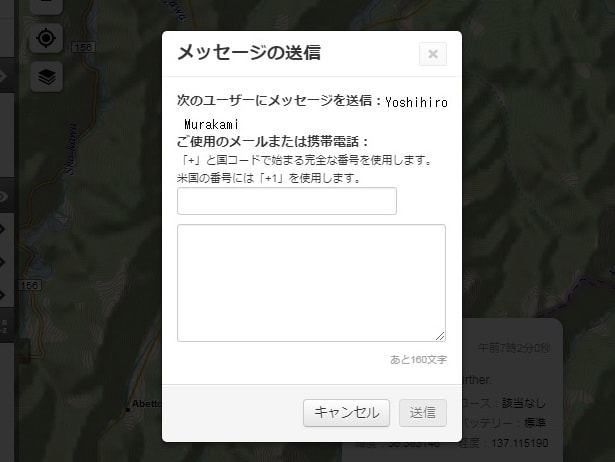
Photo 14-b: Check the reply option and click on the message on the map to display the reply window
Facebook usage
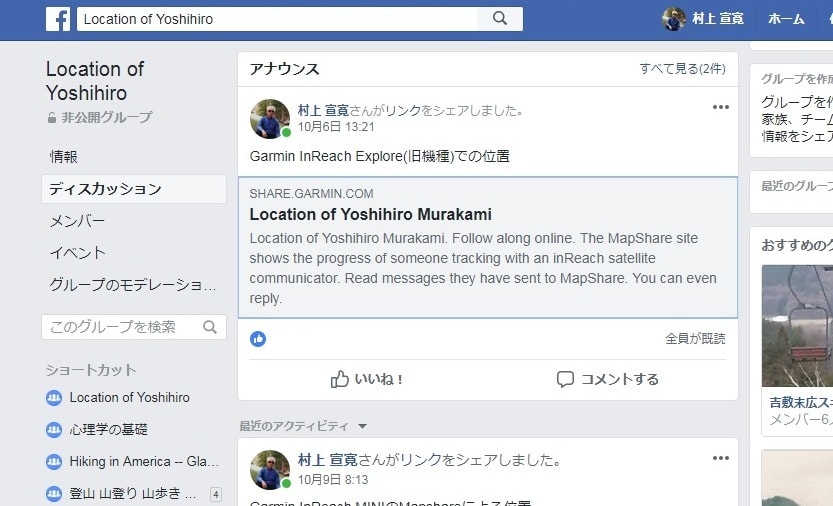
To make Mapshare public to only specific friends, copy the Map-share URL to your Facebook timeline and set the post to privacy. Another way is to create a private page showing your location information, which can only be viewed by members. Photo 15 is my example. In this case, Mapshare can be set to public